Pay Button Widget
A Pay button for donations and tips
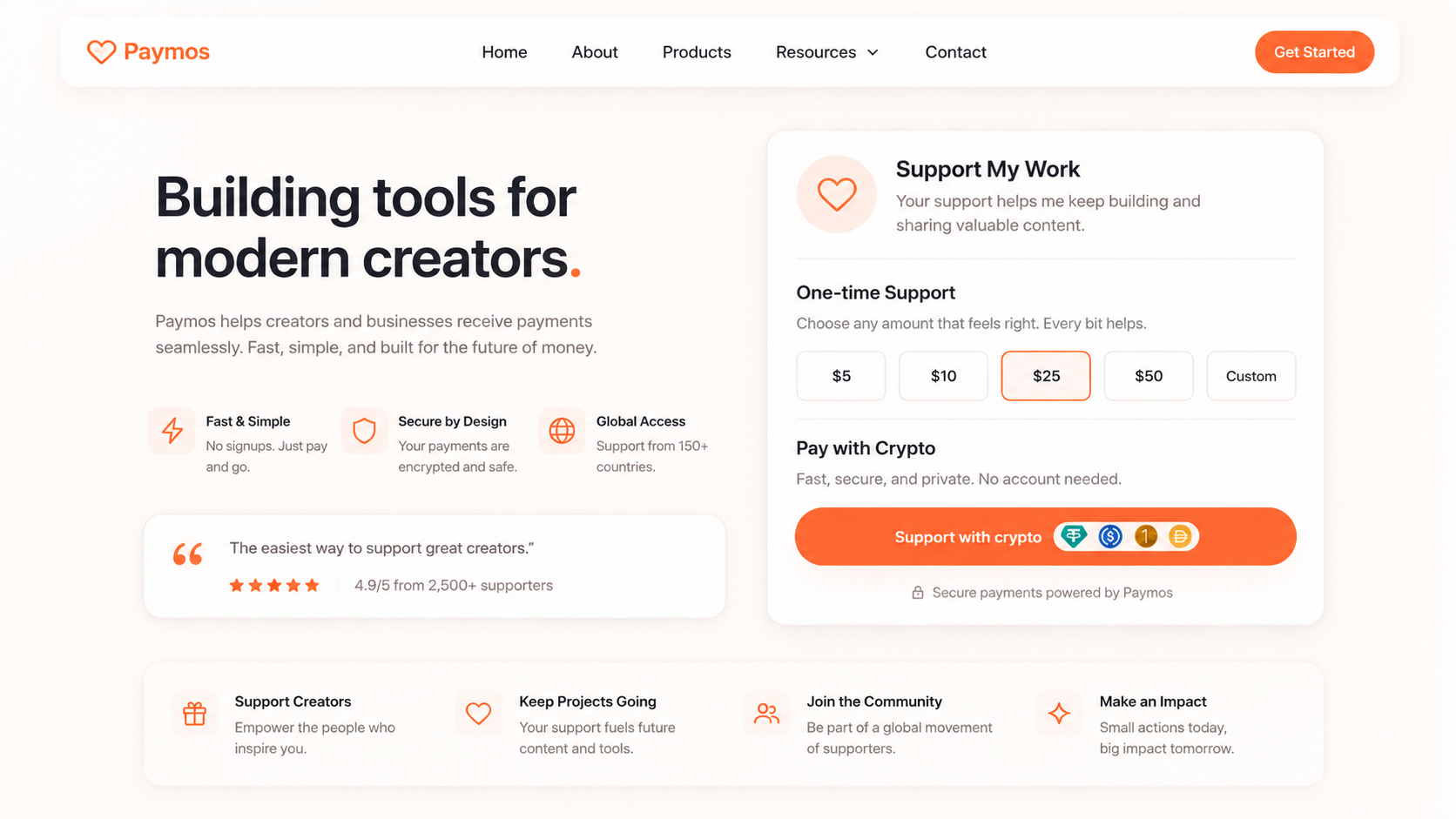
Add a Pay button to any page where the customer decides how much. Donations, tips, pay-what-you-want pricing — they pick the amount, you receive it in stablecoin.
Why the widget
Variable-amount payments on your page
Hosted Checkout fits a cart with a fixed price. Payment Links fit a billed invoice. The widget fits everywhere the customer chooses how much to pay — donations, tips, contributions, support.

Two lines of HTML
One script tag in your page head, one HTML block where you want the button. No build tools, no library to update.
Customer picks the amount
The widget opens the checkout on top of your page, the donor or supporter types in the amount they choose, and the contribution lands on your balance.
Payment without a page change
The checkout opens on top of your page. Your URL stays in the address bar, your brand stays around the modal.
Theme from the dashboard
Accent colour, surface colour, text colour, corner radius — set them in the project's branding panel. The widget picks them up at load.
Where to use
Pages where the customer decides how much
The amount field is left open, so the same button sits on a tip jar and on a fundraising page without being reconfigured.
Donation pages
Creators, non-profits, charities, religious organisations. Visitor clicks Donate, picks an amount, the contribution lands on your Paymos balance.
Tip jars and support buttons
Streamers, writers, podcasters, open-source devs. Add a Support button to your bio, blog, or about page.
Pay-what-you-want pricing
Indie creators, ebook authors, course makers who let supporters set the price. Customer picks, the payment lands the same way.
Crowdfunding and patron pages
Fundraising campaigns, patron tiers, supporters who come back month after month. Each backer picks their level and sends it themselves; you receive it in stablecoin.
How it works
Configure the widget and publish its snippet
Choose the amount mode and brand settings in the dashboard, then place the generated snippet on the page.
- 1
Open the widget builder
Open Low-Code in your Paymos dashboard with the right project selected. Every option lives in one panel.
- 2
Customise right there
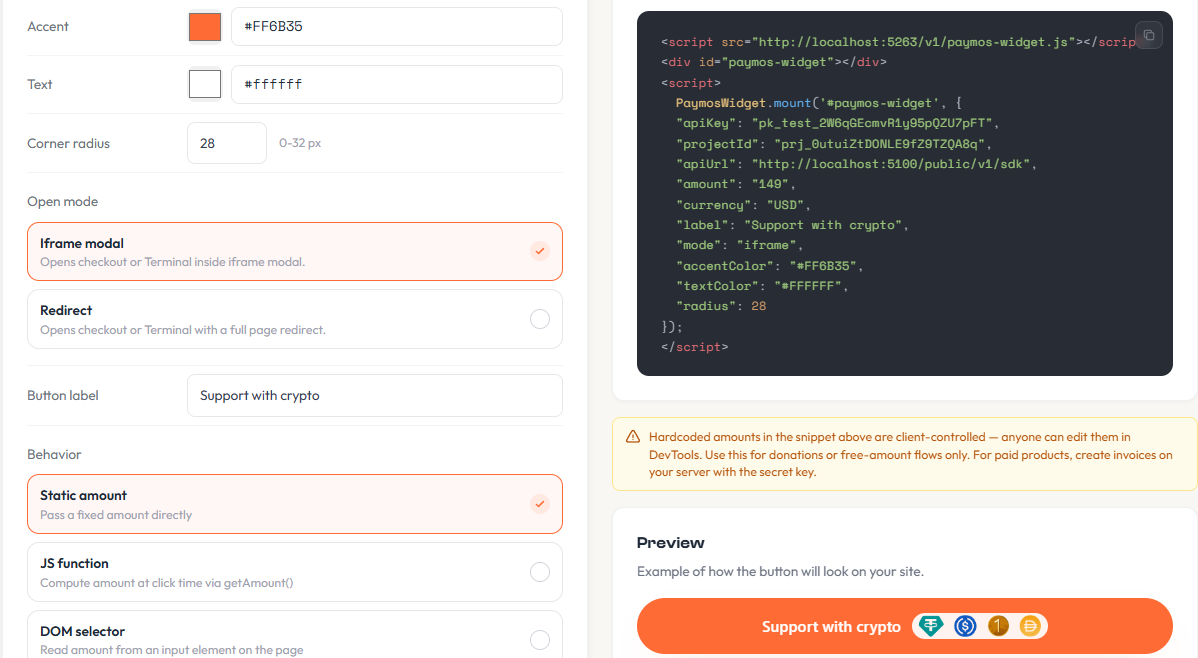
Choose the amount mode — open amount, or a fixed price you create right there — then set the button label, brand colours and corner radius. The preview beside it follows every change.
- 3
Paste the snippet on your page
Add the generated script and HTML block to the page source. The button loads with the current project configuration.
Get started
Two lines of code
Add the script tag once, then place the widget block wherever you want the Pay button. The widget creates the invoice on click — no backend setup needed.
Read docs<script src="https://paymos.io/v1/paymos-widget.js"></script>
<div id="paymos-widget"></div>
<script>
PaymosWidget.mount('#paymos-widget', {
api_key: 'YOUR_PUBLIC_KEY',
project_id: 'prj_YOUR_PROJECT_ID',
amount: '25.00',
currency: 'USD',
label: 'Support with crypto',
mode: 'iframe',
accent_color: '#FF6B35',
text_color: '#FFFFFF',
radius: 20
});
</script>Same Paymos backend
The widget creates a real Paymos invoice. The contribution lands on your balance the same way every other Paymos payment does.
Test mode included
Switch to test mode with a single key change. Pay buttons render exactly the same, no real money moves.
Pick your path
Other ways to take a payment
Same Paymos backend. Pick the surface that fits how your customers already buy — or run several at once.
Hosted checkout
A Paymos-hosted payment page. Share the URL or redirect from your cart — customer pays on our domain, you take the webhook.
Open Hosted CheckoutEmbed on your site
The same checkout opens inside your domain — no new tab, no new URL. Stays on your brand from cart to confirmation.
Open Embedded CheckoutSend a payment link
No-code share URL from the dashboard. Paste anywhere — email, SMS, Telegram, support chat, invoice PDF.
Open Payment LinksPhone-as-terminal POS
Any phone or tablet becomes a crypto terminal. Enter the amount, show the QR, customer scans and pays.
Open Terminal POSTelegram checkout
A Telegram-bot project's payment link opens a chat, not a page. Customer picks asset and network there — no Paymos account needed.
Open Telegram CheckoutPermanent deposit address
An address on every supported network, under your own customer id. No amount, no expiry — whatever they send lands on your balance.
Open Payment ChannelsPricing
1.0% of each contribution received
The button adds nothing to the rate. Enterprise is 0.3% on request; payouts carry no Paymos commission, only a subsidised network fee — under what the route charges to send.
See pricing